
Shipping now
Policy & Procedure Manager
Write, review, approve and publish policies with the controls an accreditation survey expects, and make them easy for front-line staff to find, understand and acknowledge. Editors check policies out, concurrence reviewers sign off and a final approver publishes. Staff find the current version by typing, browsing or asking AI, and confirm required reading on each new version. Every version, decision, view and acknowledgment is kept.
- Check-out and check-in editing, with change notes on every version
- Concurrence reviewers and a final approver on each policy
- Review dates that flag overdue policies on the dashboard and in reports
- Find any policy by typing, browsing or A–Z, with or without AI
- AI answers drawn only from your approved policies, with citations
- Required reading, acknowledged on every new version
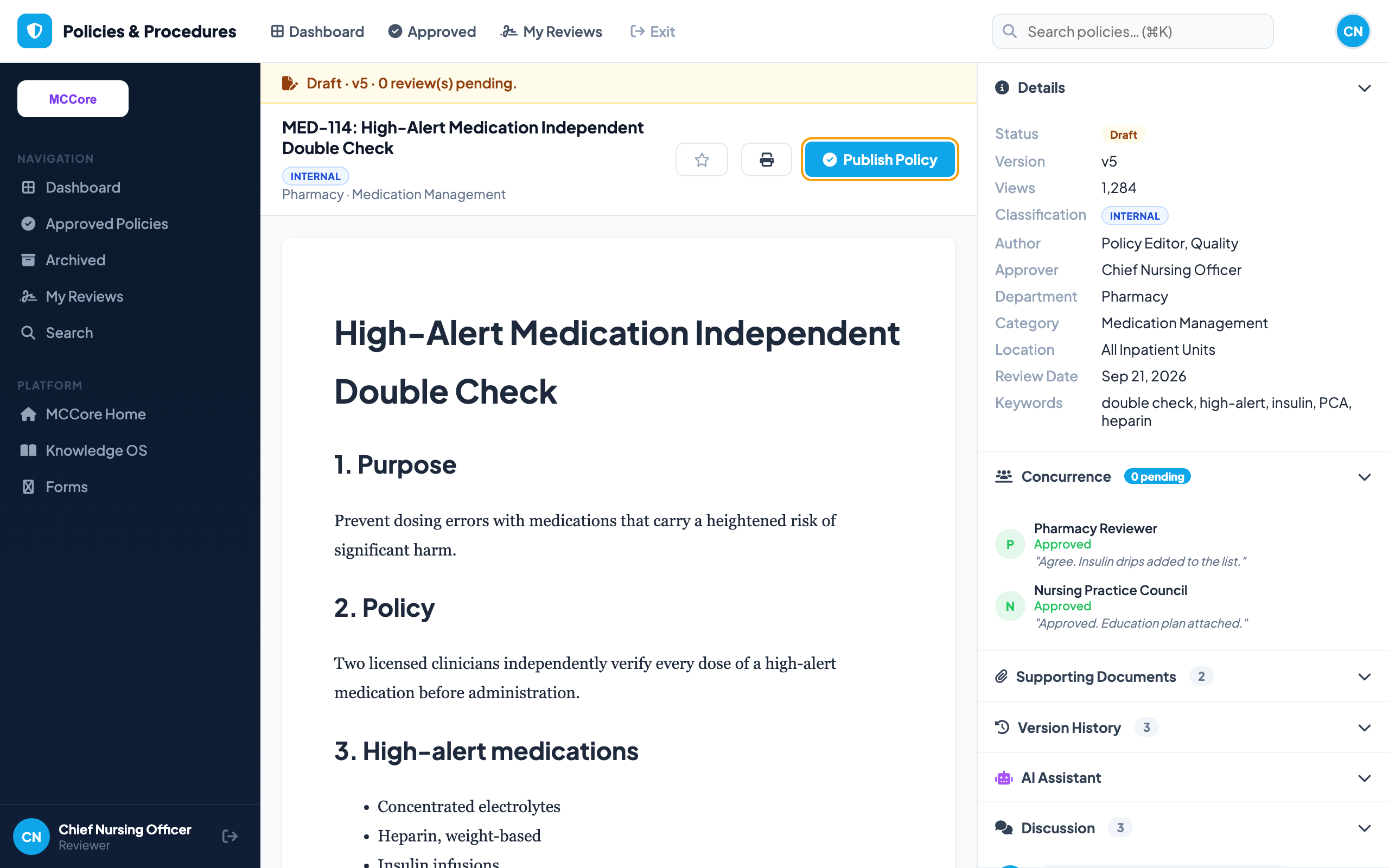
Check-out locks a policy to one editor, and change notes added at Check In are kept in the version history.
Publish stays blocked until every concurrence reviewer has made a decision.
Staff confirm each approved version of a required-reading policy, and coverage shows who has and has not.
Every check-in is kept with its date and change notes, ready for a surveyor.
Draft and check out
Start from a template, or send a policy back to draft with a reason, which restarts concurrence. Check it out, edit it, and check it in with change notes.
Route for concurrence
Name the concurrence reviewers and the final approver on the policy. Reviewers get a task under My Reviews, and a rejection always comes with a comment.
Publish and monitor
Once no review is still pending, the final approver publishes. Earlier versions stay in Version History, and views, approval times, overdue reviews and acknowledgment coverage show up in Reports.
Find, understand and acknowledge
Staff find the policy by typing, browsing or asking AI, see what it means for their shift, and confirm required reading. Admins see acknowledgment coverage per policy and version.
Find it without AI
Results appear as you type, ranked by title, keywords and synonyms, so "PTO" finds leave and "fall" finds falls. Browse by department or topic, use the A–Z list, or search the full text with matches highlighted.
AI answers, with citations
Staff ask a question in plain words and get an answer drawn only from approved policies, citing each one. If no policy covers it, the answer says so. On any policy, "What do I need to do?" turns it into steps for the shift.
Required reading
Mark a policy as required reading and it sits at the top of every staff dashboard until they acknowledge it. Each new version asks again, and Reports show coverage per policy.
Searchable keywords and PDFs
AI suggests the everyday words staff search for, and reads uploaded PDFs so their text is searchable and answerable, not just attached.
Concurrence workflow
Reviewers approve or reject with comments, and the final approver cannot publish while any review is still pending.
Review dates
Every policy carries its own review date. Passing it flags the policy as Review Overdue on the dashboard, in the list and in Reports.
Version history
Every version is kept with its change notes, so "what changed and when" is one tab away.
Documents and discussion
Supporting documents and a discussion thread live on each policy, next to the text they relate to.
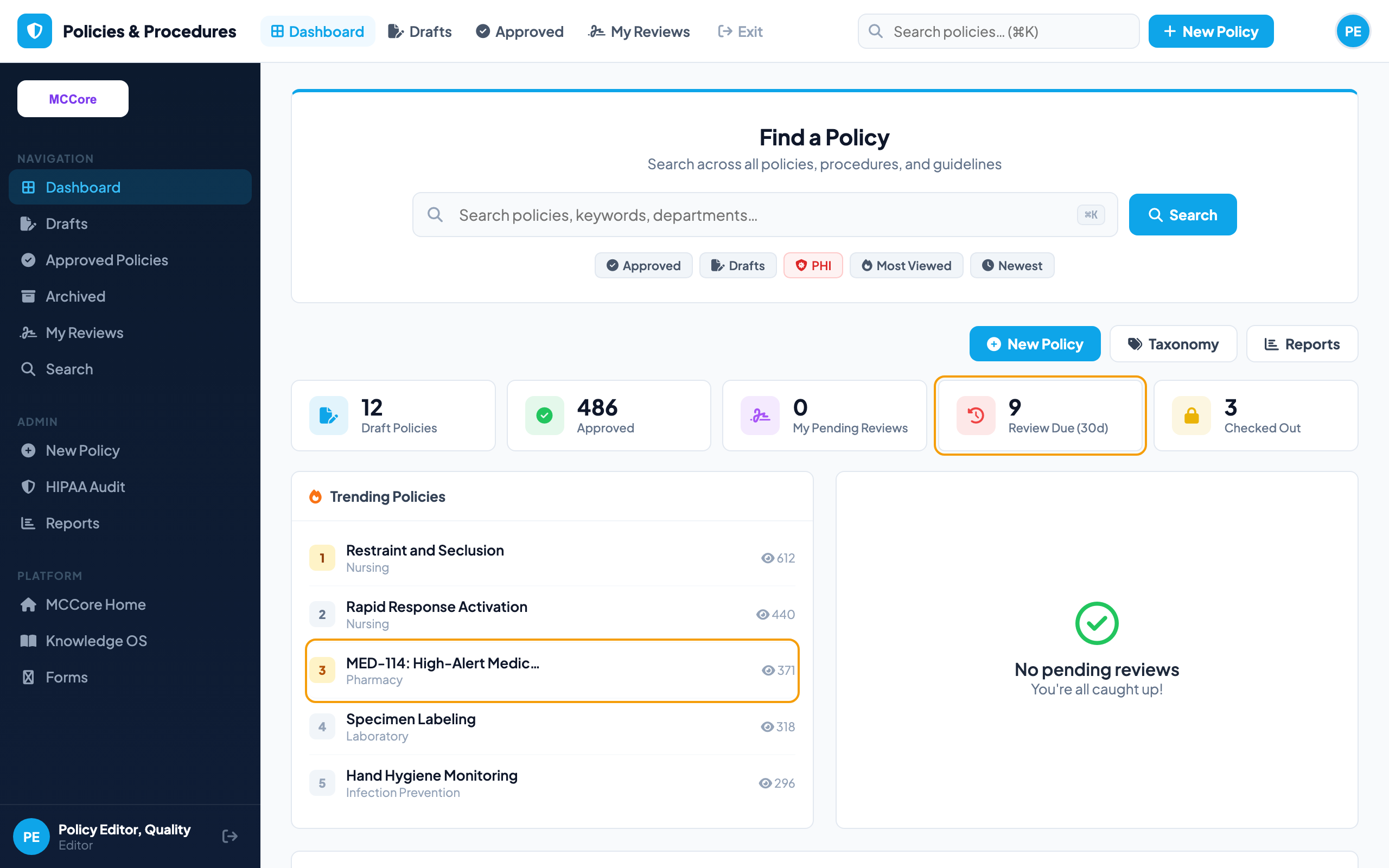
Overdue policies do not hide
The dashboard flags every policy past its review date, alongside drafts, pending concurrence and what staff are reading this week.
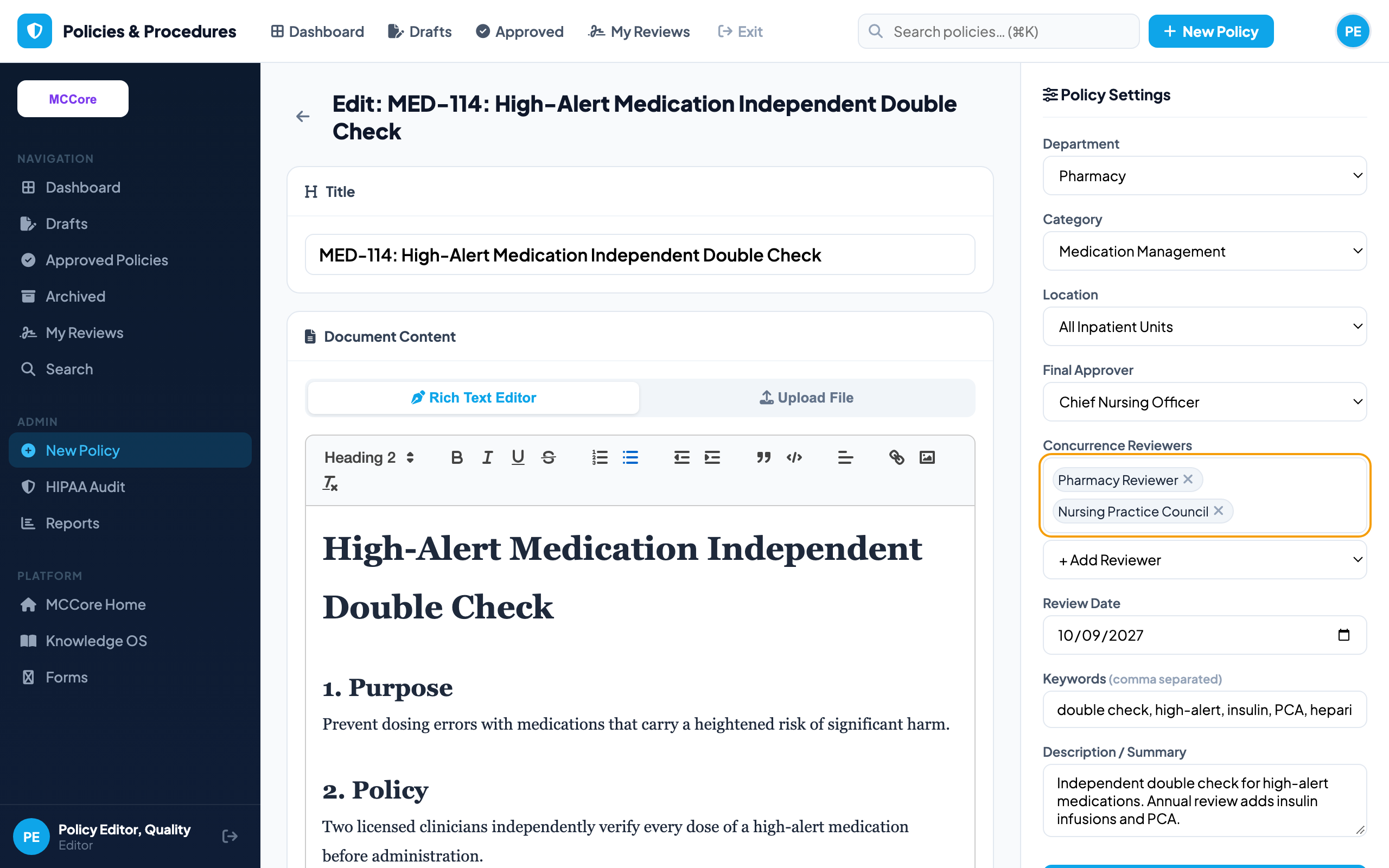
One editor at a time, with notes
The policy is checked out to one editor, who names the concurrence reviewers and final approver, sets the next review date, and checks it in with change notes.
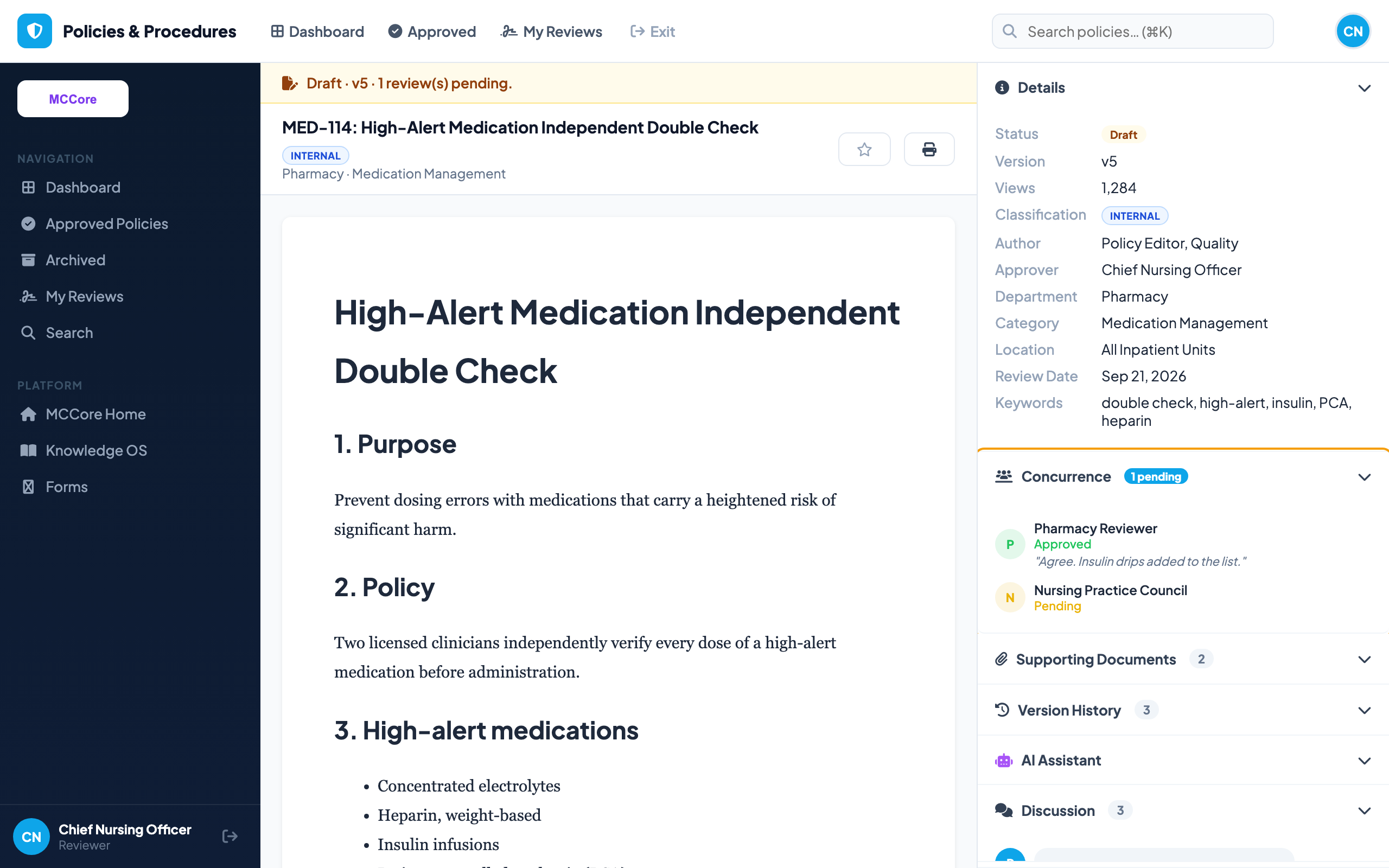
Nobody gets skipped
Pharmacy has approved. Nursing has not decided yet, so Publish stays blocked. Each decision and comment is on the Concurrence tab.
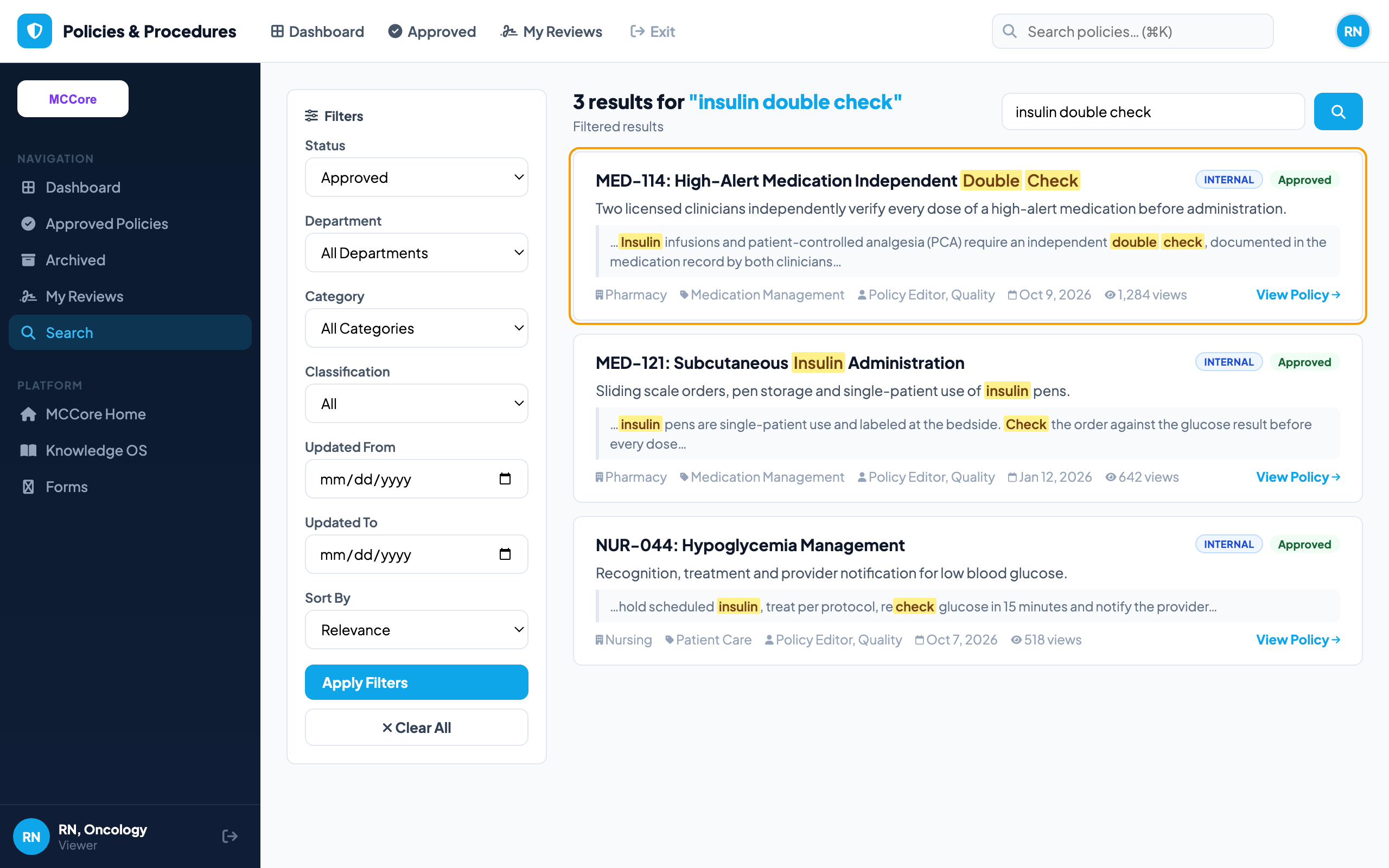
Staff find it however they ask
A nurse types "insulin drip" and the policy appears before she finishes. Full-text search highlights the match, and a short AI answer with citations sits on top.
Questions answered from your policies
"Do I need a second nurse to hang an insulin drip?" gets a short answer citing the exact policy, with a link to open it. Front-line staff only ever see approved policies.
Proof they read the new version
The nurse confirms version 5 with one click. Compliance sees 212 of 318 staff have read it, and who still needs to.
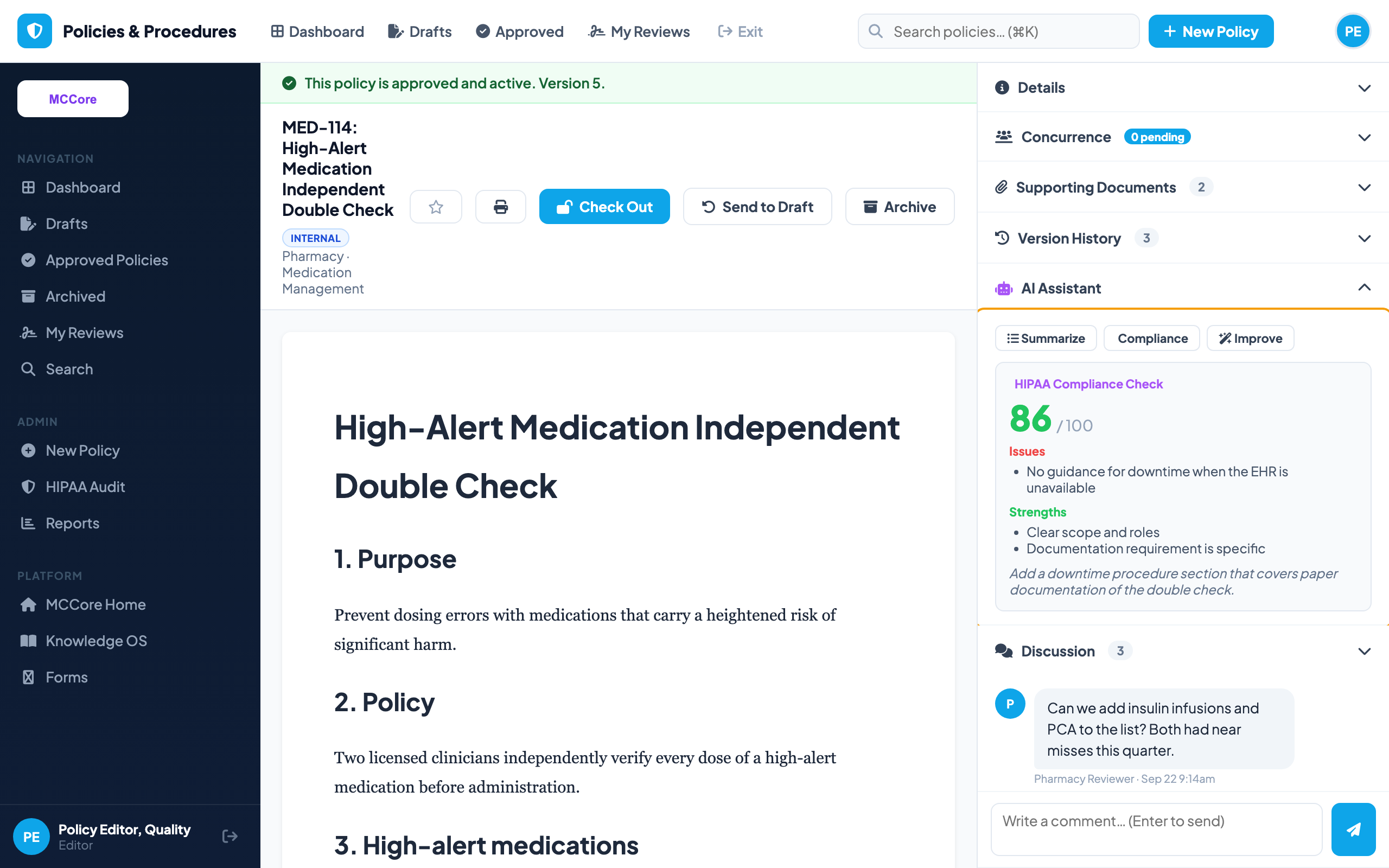
AI helps editors, too
Suggest the plain-language keywords staff actually search for, check a policy for compliance gaps, or tighten the wording. Each AI feature is a separate switch, and AI never edits a policy on its own.
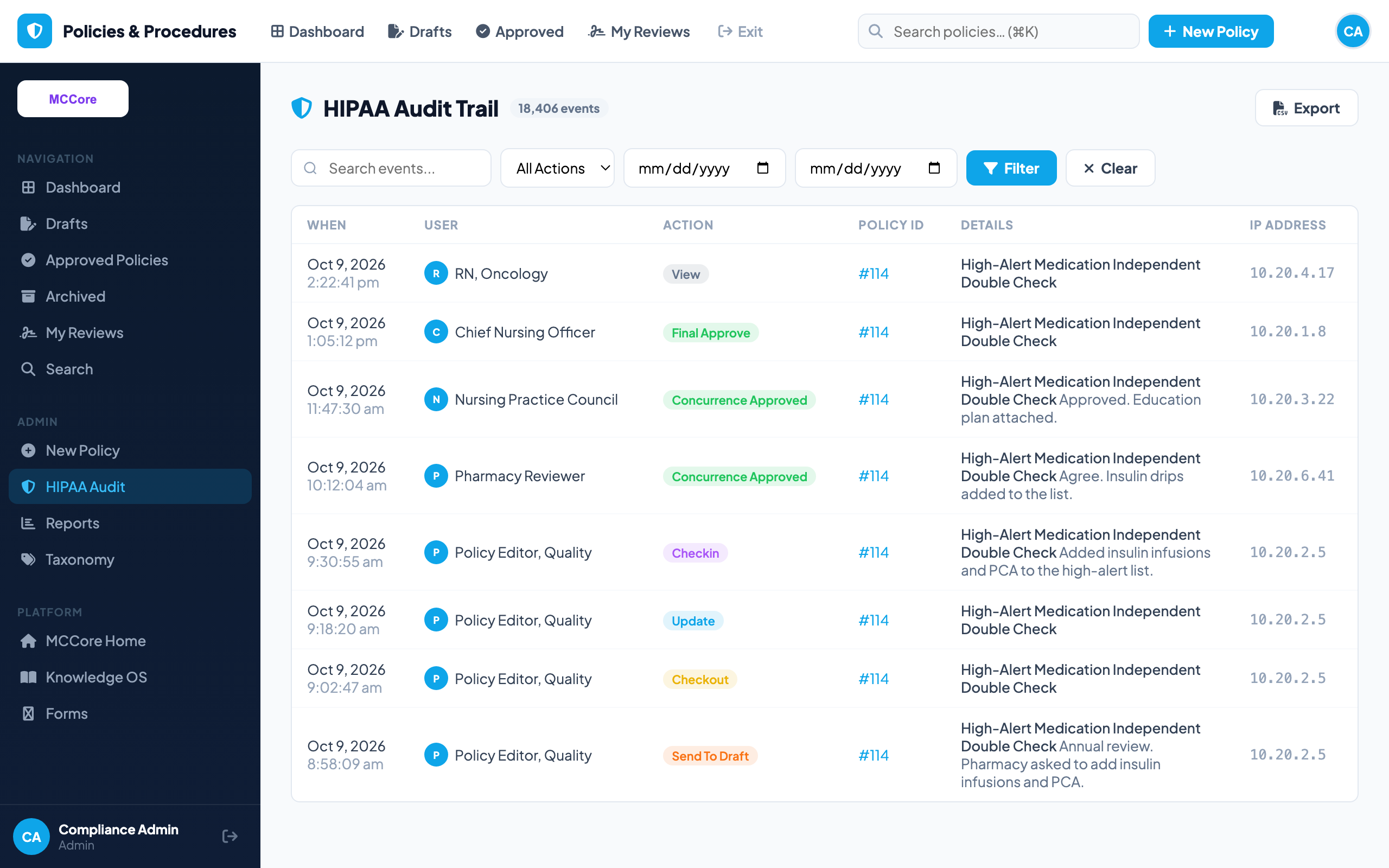
The record behind every policy
Every create, view, edit, concurrence decision and publish, with user, time and IP address, ready for a survey or an investigation.
Questions
Do staff need to use AI to find a policy?
No. Type-ahead search, synonyms, browse by department or topic, the A–Z list and full-text search all work with AI switched off. AI is an extra way in, not the only one.
Can the AI make up an answer?
Answers are built only from your approved policies, and each claim cites the policy it came from so staff can open and check it. If no policy covers the question, it says it could not find one. The policy text is always the official source.
Can we turn AI off?
Yes. There is a master AI switch for your organization, and separate switches for Ask AI, the policy AI Assistant, acknowledgments, favorites, reports, versioning and more. Turn one off and its buttons and pages disappear.
How does acknowledgment work?
Editors mark a policy as required reading. Staff see it on their dashboard and confirm with one click on the policy. Each acknowledgment is tied to a version, so a revision asks again, and Reports show coverage.
What is the difference between a concurrence reviewer and the final approver?
Concurrence reviewers are stakeholders who approve or reject a draft, with comments. The final approver publishes the policy once no review is still pending.
What happens to the old version when a policy is revised?
Every check-in saves a version with its change notes, and Version History keeps them all, so you can see what changed, when and by whom.
How do you handle policies that are due for review?
Each policy has a review date. Once it passes, the policy is flagged as Review Overdue on the dashboard and listed in the Overdue Reviews report.
What is logged?
Every create, view, update and approval, with the user, time and IP address, in the HIPAA audit trail.
Can we attach supporting documents?
Yes. Each policy has a Supporting Documents panel for forms, PDFs and references, and a Discussion thread.
Walk through it before you talk to us
Follow an overdue medication policy through revision, concurrence and publication, then watch a nurse find it, ask AI about it and acknowledge it, and see the coverage and audit trail behind it. Then bring us the policy library you inherited.