
Shipping now
Intelligent Forms Engine
Turn the requests, reports and sign-offs your departments still run on paper and email into forms that route themselves. Build with drag and drop, add logic so people only see what applies to them, collect signatures, and send every completed submission straight into TaskFlow, notifications, email or a webhook.
- Drag-and-drop builder with 16 field types, including signature and approver
- Conditional logic that shows, hides, requires or sets fields
- Approvals with digital signatures: approve, return for revision, or reject
- Completed submissions create TaskFlow items, notifications, emails and webhooks
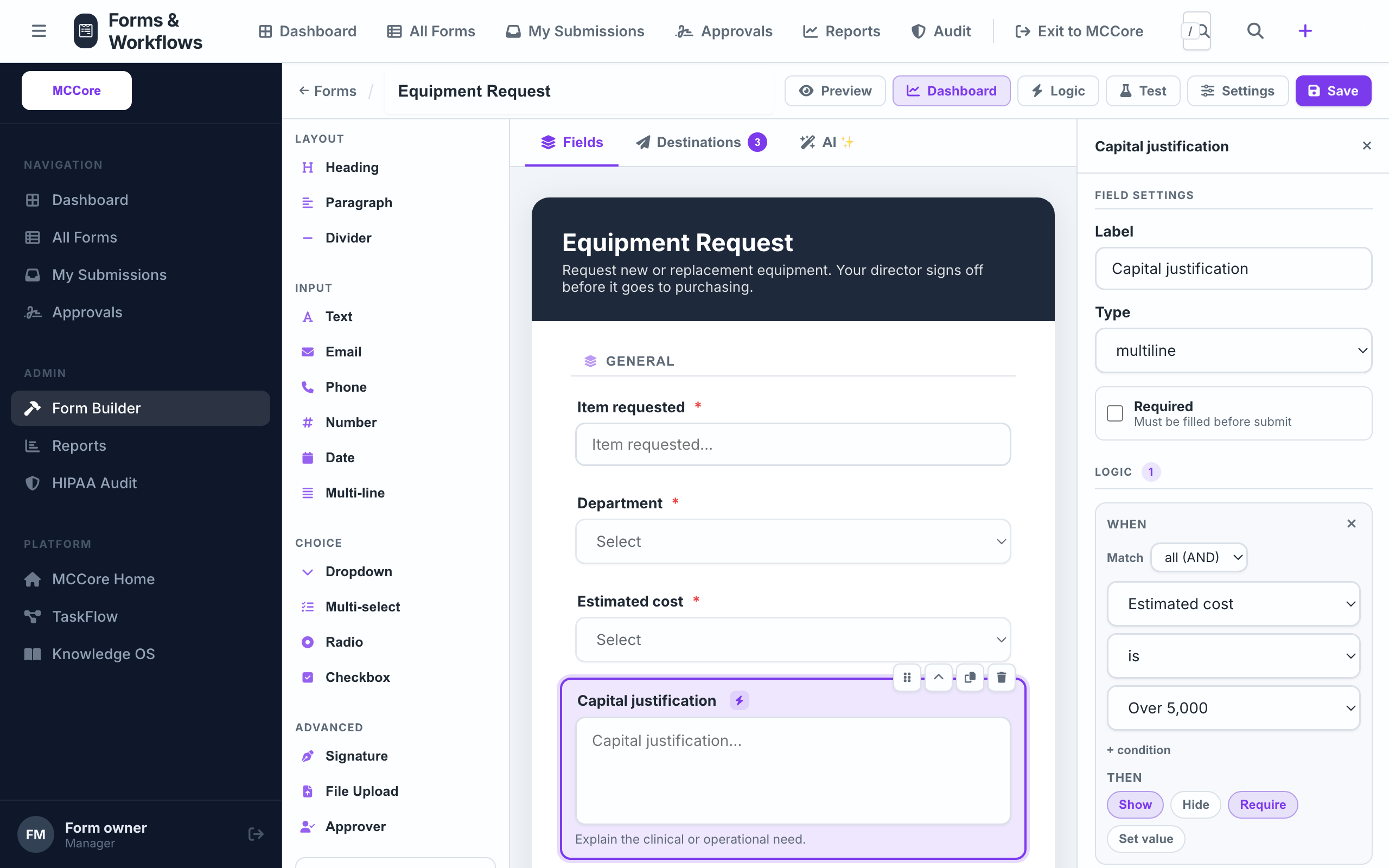
Text, number, date, dropdown, multi-select, radio, checkbox, file upload, signature, approver and layout blocks.
TaskFlow, notifications, email, webhooks, Rounds and Policies. They fire when a submission is completed.
Approve, Return for Revision or Reject. Each decision is signed, timestamped and logged.
Quotes, photos and spec sheets attach to the submission they support.
Build it
Drag fields from Layout, Input, Choice and Advanced onto the canvas. Add logic so a field appears only when it applies. Already have a PDF form? Drop it in and AI drafts the fields for you to review.
Route it
Choose where completed submissions go: an item on a TaskFlow board, a notification, an email, a webhook, a Rounds issue or a policy link. Set who approves with an Approver field.
Sign it off
Approvers see everything awaiting their signature in one queue. They approve with a digital signature, return it for revision, or reject it, and the requester sees the outcome straight away.
Conditional logic
Show, hide, require or set a field based on other answers, with AND / OR conditions. Small requests stay short; big ones ask for the justification.
Signatures on any device
Signature fields work with a mouse, trackpad or finger. Approvers sign their decision too, and both signatures stay with the submission.
One approval queue
Everything awaiting a signature, in one list. When a form names several approvers, it completes when all of them have approved.
Destinations
Completed submissions create work where it gets done: TaskFlow items, notifications, emails, webhooks, Rounds issues and policy links. Nobody re-types anything.
AI that builds and fills
Generate a form from a description or an existing PDF, and let requesters fill fields from their own words. Both are switches you control.
Dashboards and audit
Per-form dashboards show volume, approval rate and how answers break down. Every view, submission and decision is in the audit trail.
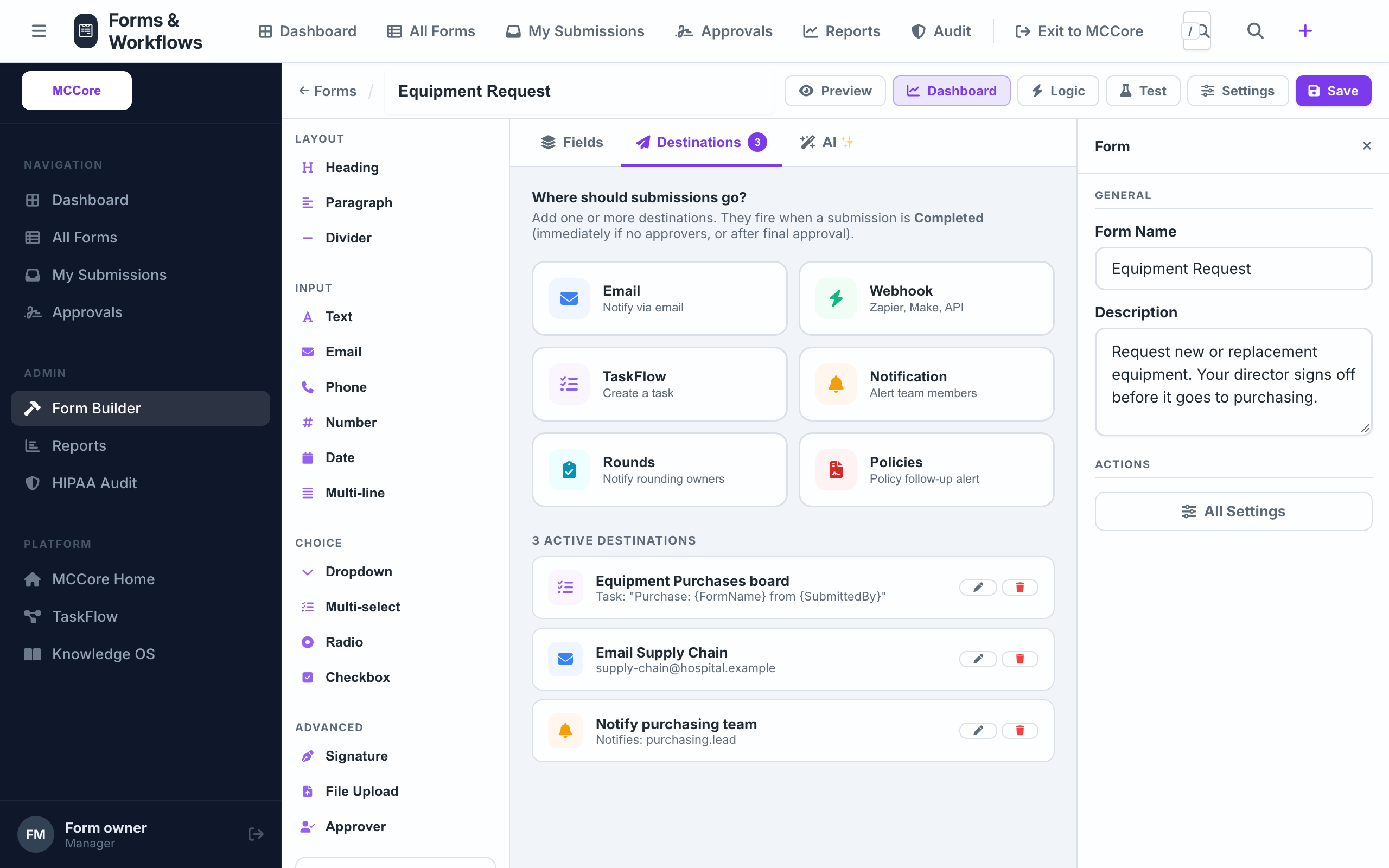
Decide where finished requests go
When an equipment request is completed, it creates an item on the purchasing board in TaskFlow, notifies the requester and emails Supply Chain. Destinations never fire on drafts or rejected requests.
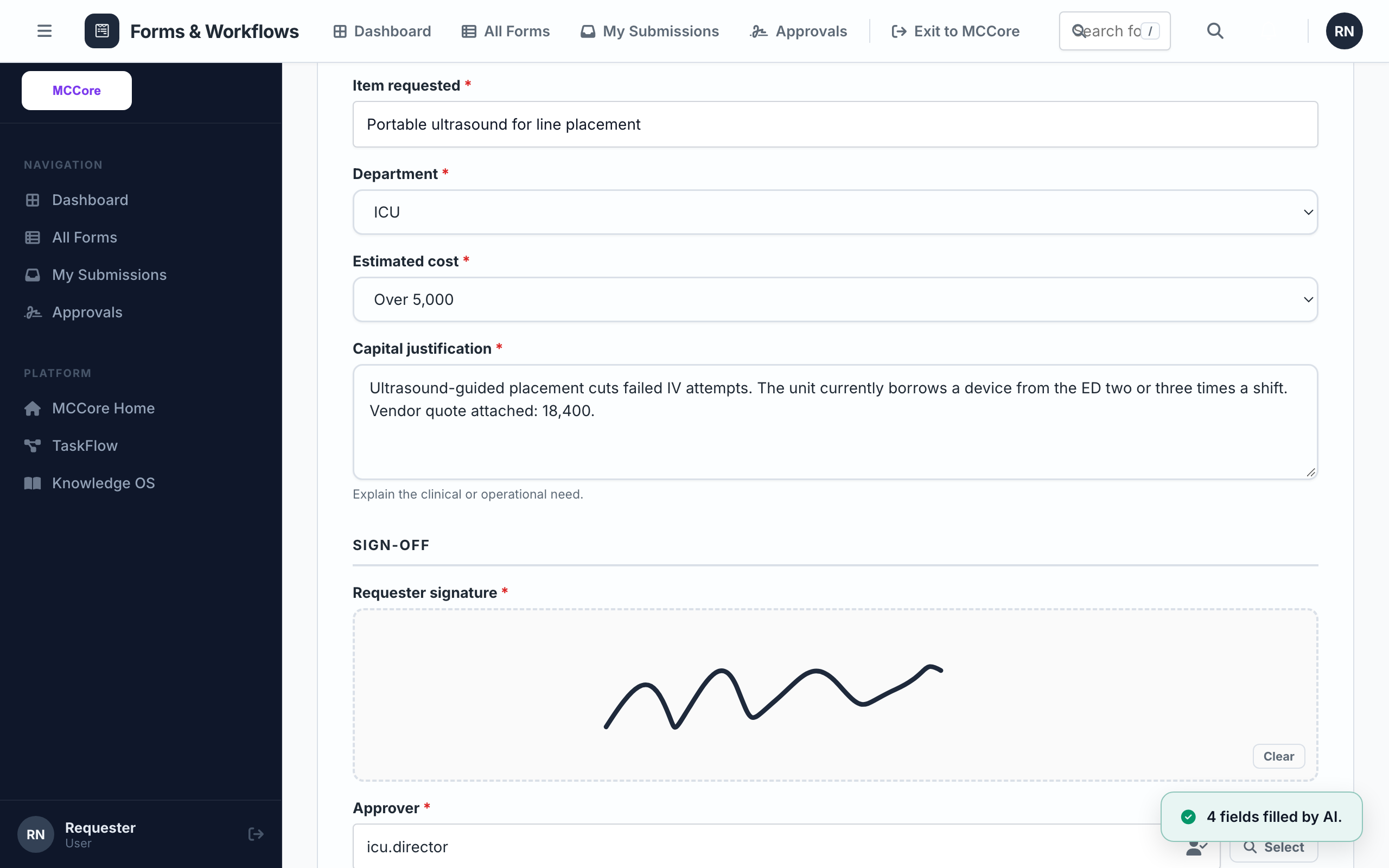
Only ask what applies
An ICU nurse describes what she needs and AI suggests the values. The cost is over 5,000, so a justification field appears and becomes required. She signs with her finger and picks her director as approver.
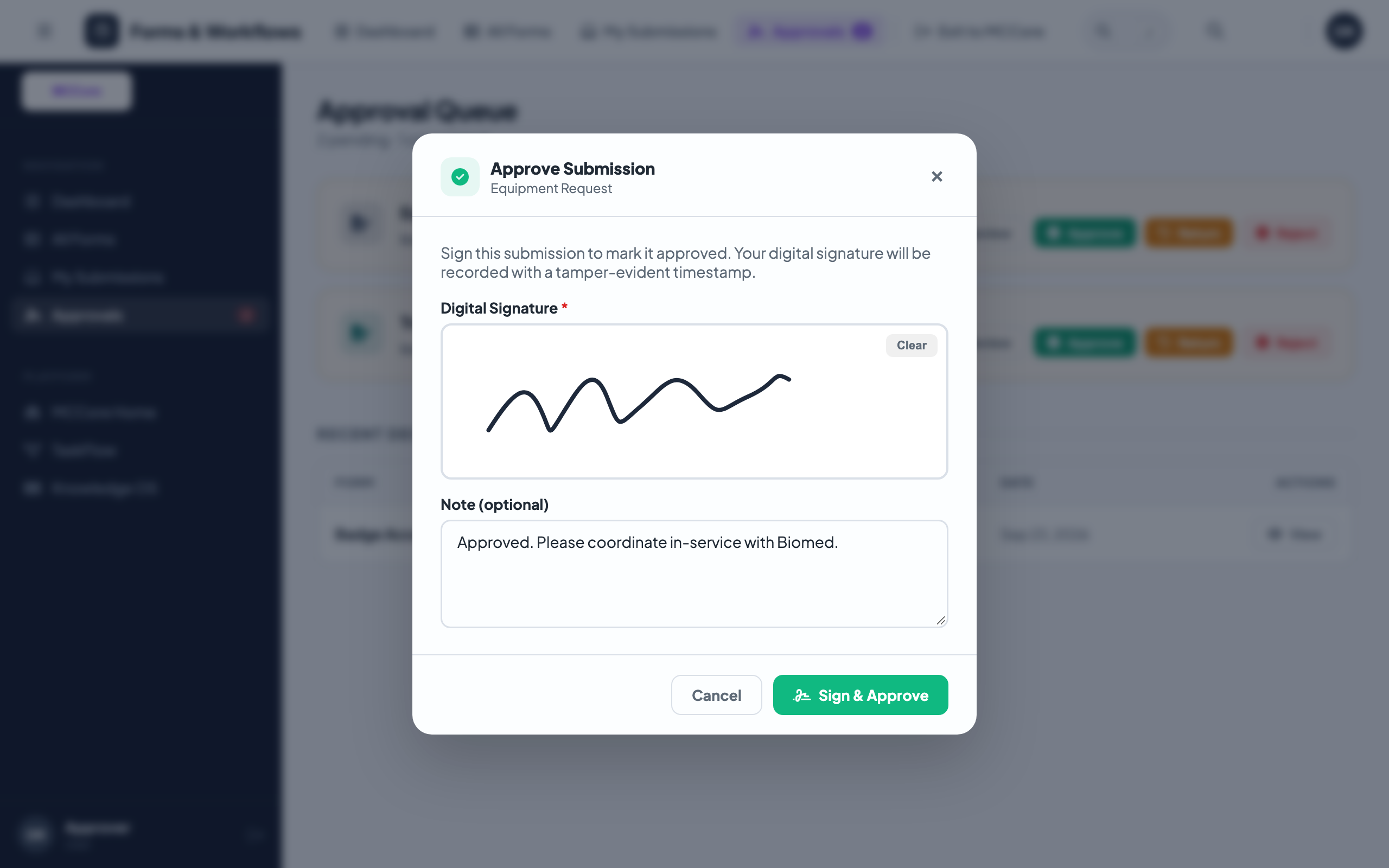
Sign, return or reject
The director reads the request and the attached quote, signs, and approves. Returning or rejecting it notifies the requester, who can edit and resubmit.
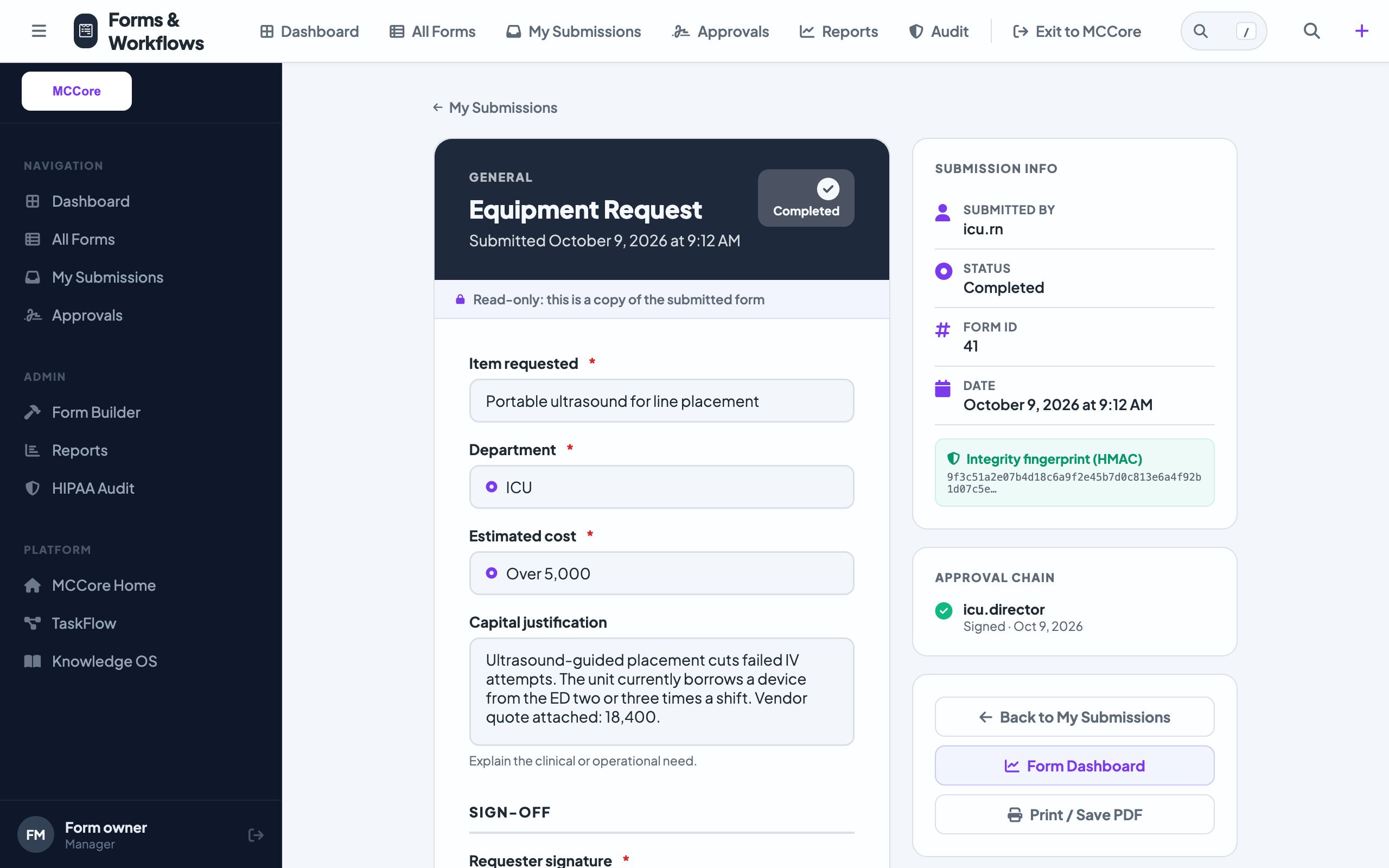
Completed, and the work already exists
The TaskFlow item is created and linked back to the submission, the requester has been notified, and both signatures are on the record.
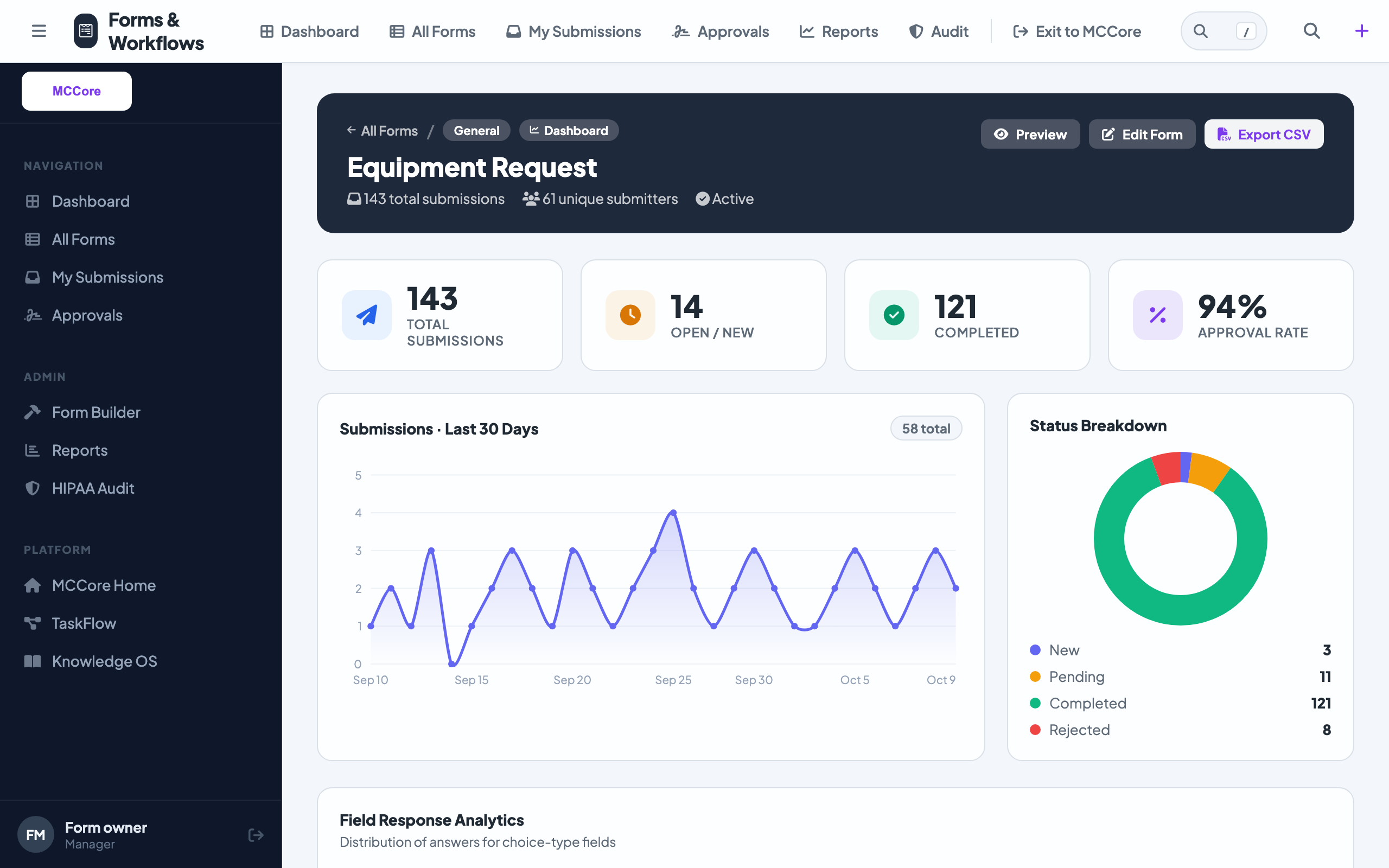
See how every form performs
Volume, completions, approval rate, pending work and how answers break down, per form, so you can see which requests are getting stuck.
Questions
Can a form need more than one approver?
Yes. Each named approver signs, and the submission completes when all of them have approved. If any approver returns or rejects it, the remaining approvals are cancelled and the requester is notified.
What happens when a submission is completed?
Its destinations run: create a TaskFlow item, send a notification or email, call a webhook, create a Rounds issue or link a policy. Destinations only fire on completed submissions.
Who can fill in a form?
Each form has an access level. Forms are filled in by signed-in MCCore users, so every submission and signature is tied to a real account.
Can we convert our existing PDF forms?
Yes. Drop a PDF into the builder and AI extracts its fields into a new form. You review, adjust and publish it like any other form.
Can we keep a copy of a signed submission?
Every submission has a print view that saves to PDF from the browser, with its answers and signatures.
Walk through it before you talk to us
Follow an equipment request from the builder to a signed approval and a task on the purchasing board. Then bring us the form your departments complain about most.